
How to save stamp cards to Apple Wallet
Attique Chaudhry • May 19, 2019
If you are not familiar with how to add a digital loyalty card to their Apple Wallet application.
We've created these simple to follow instructions for you to follow to successfully ad your card to Apple Wallet.
Simply go to https://loyalty.is/hahht2
from your desired Web Browser.
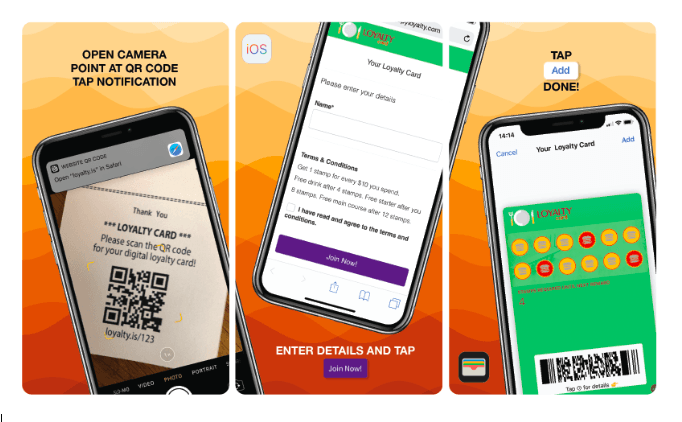
Learn how to save stamp cards to Apple Wallet by watching this video or following the instructions below.
Apple Wallet
• Option 1: Saving via mobile (iOS 11)
• Option 2: Saving via mobile (iOS 10 or below)
• Option 3: Saving via your desktop browser
Option 1: Saving via mobile (iOS 11)
The camera app in iOS 11 now supports scanning of QR codes! No need for 3rd party scanner apps anymore.
1. Open your camera app and point to the QR code.
2. Tap on the link to open the page in Safari.
3. Fill in your details, submit, and tap 'Add' to save your loyalty card to Apple Wallet.
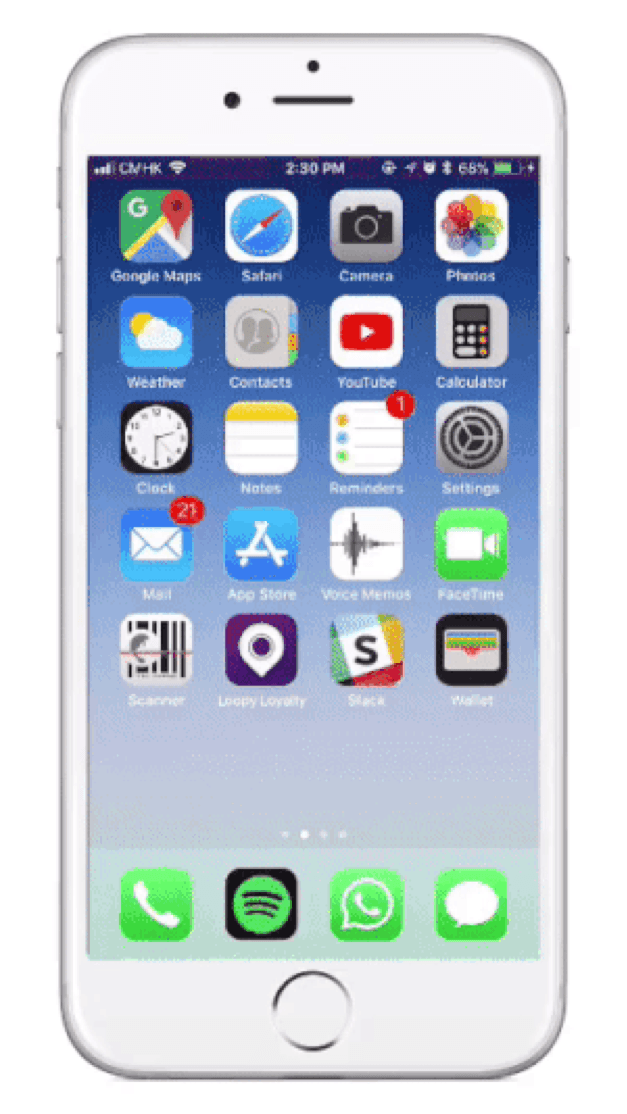
Option 2: Saving via mobile (iOS 10 or below)
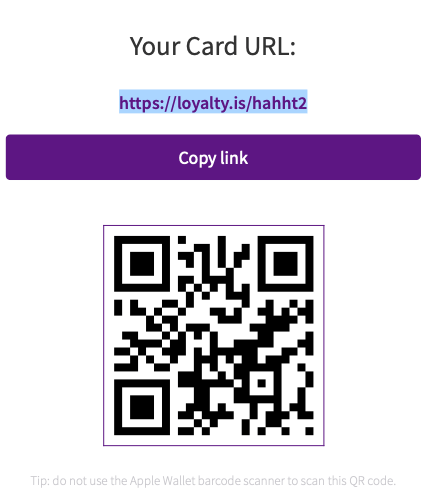
Type your card URL in your Safari or scan the barcode with a 2D barcode scanner app (e.g. Manatee Works Barcode Scanner) and launch the URL in Safari.
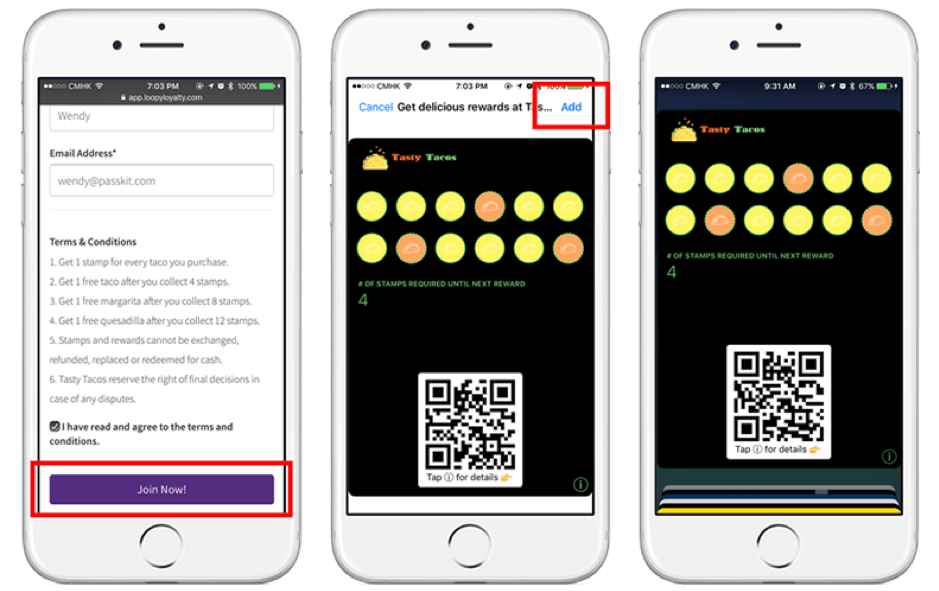
Fill in the required details and tap the ‘Join Now’ button at the bottom. Then tap the ‘Add’ button on the top right of your screen. Your card will then be saved to Apple Wallet.
Option 3: Saving via your desktop browser
Click on your card URL in your 'Dashboard'.
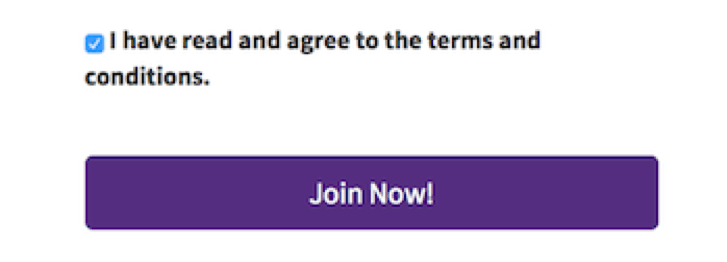
Fill in the required details and click the 'Join Now' button at the bottom.
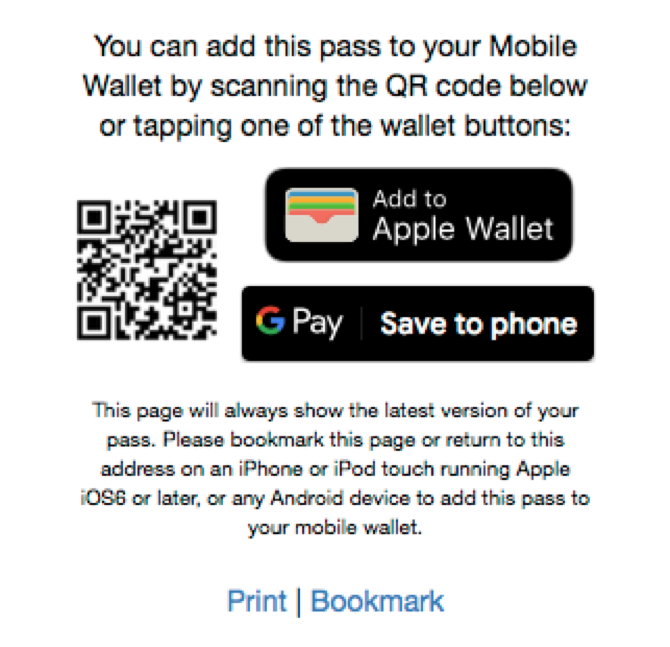
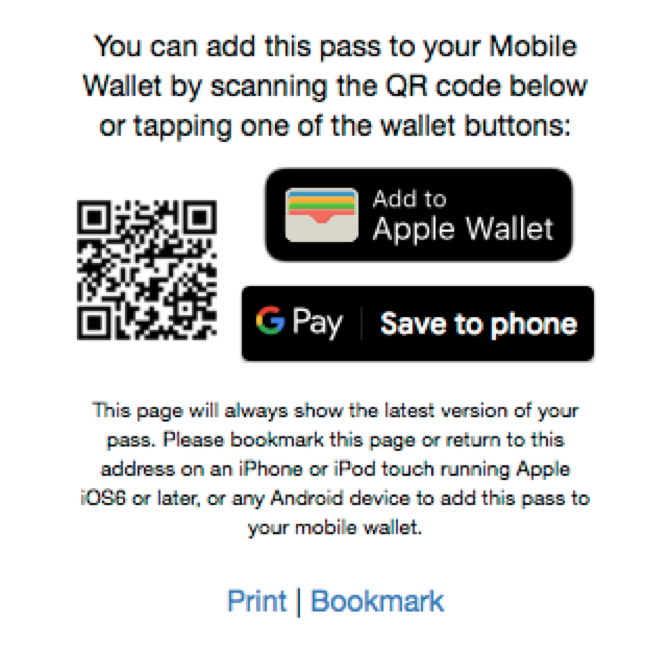
Below the preview of your card, you'll see a QR code, an 'Add to Apple Wallet' button (only if you are on Safari) and a 'Save to Phone' button (for Google Pay) like this:
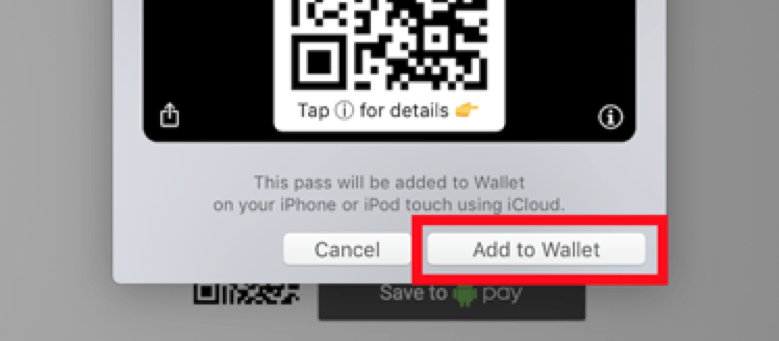
If you are using Safari, simply click on the 'Add to Apple Wallet' button, then click on 'Add to Wallet' in the popup. This will automatically save your card to Apple Wallet via iCloud.
If you're not using Safari, take out your iPhone and open Wallet. Tap on the 'Plus' icon as shown below. Then tap on 'Scan Code to Add a Pass'.
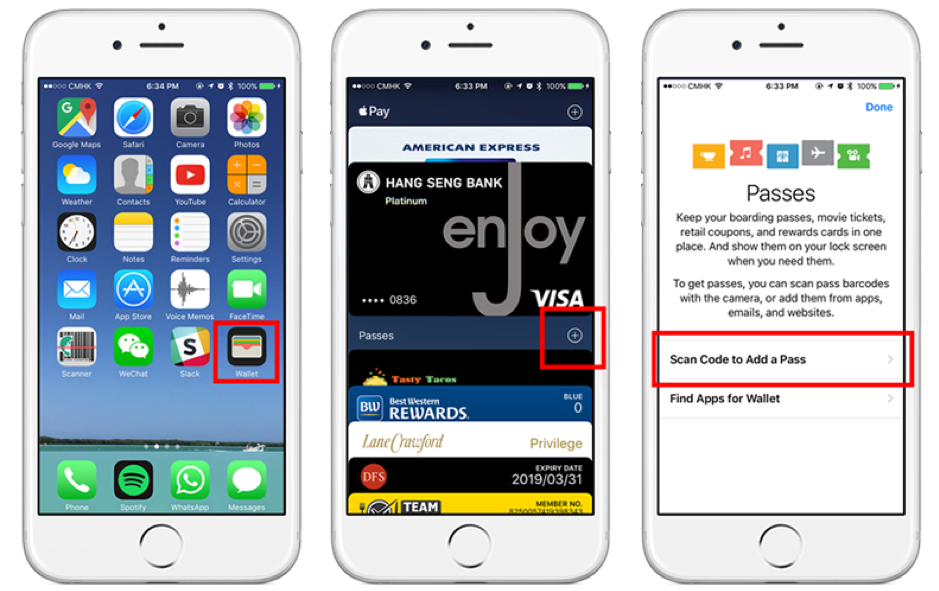
Then scan the QR code underneath your card preview and your card will be added to Apple Wallet.
We hope this blog has been helpful in adding your iComm Rewards Card to your Wallet, if you are still having issues or require any further assistance, please contact our support team and they will be more than happy to help!